
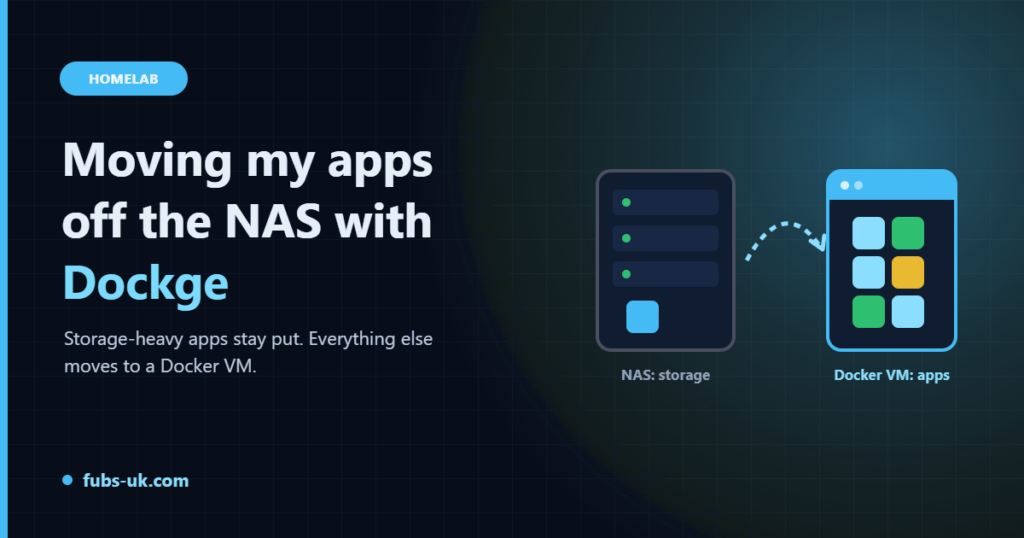
When I first set up my NAS, running apps on it was the obvious choice. TrueNAS has a built-in app catalogue, you click install, and it works. Over time, though, I kept running into the same frustrations:
- Less control. The catalogue apps hide the underlying Docker config. Want an unusual setting? Good luck.
- Upgrades on someone else’s schedule. Catalogue changes and TrueNAS version upgrades have broken apps for a lot of people over the years.
- Everything in one basket. If the NAS is down for maintenance, so is every app, including ones that have nothing to do with storage.
The rule I settled on
I didn’t move everything. I split apps into two groups:
| Stays on the NAS | Moves to the Docker VM |
|---|---|
| Media server | Dashboard |
| Download clients | Media request app |
| Anything that reads/writes lots of files on the NAS pools | Small web apps, tools, utilities |
The logic: apps that hammer the storage should sit next to it. Lightweight apps that just need a bit of CPU and a config folder are better off somewhere I fully control.
Why Dockge?
I wanted plain Docker Compose files I can read, edit and back up, plus a web UI so I’m not SSHing in for every small change. Dockge does exactly that:
- Every app (Dockge calls them “stacks”) is just a folder with a
compose.yamlin it. - The UI edits those same files. There’s no hidden database, so you can still use the command line whenever you like.
- You can paste a
docker runcommand and it converts it to Compose for you.
Portainer is the other popular option, but it’s heavier and keeps more state in its own database. For a small homelab, Dockge’s “it’s just files” approach won me over.
Installing Dockge
On the Docker VM:
sudo mkdir -p /opt/stacks /opt/dockge
cd /opt/dockge
sudo curl -o compose.yaml https://raw.githubusercontent.com/louislam/dockge/master/compose.yaml
sudo docker compose up -d
The default compose file looks like this:
services:
  dockge:
    image: louislam/dockge:1
    restart: unless-stopped
    ports:
      - 5001:5001
    volumes:
      - /var/run/docker.sock:/var/run/docker.sock
      - ./data:/app/data
      - /opt/stacks:/opt/stacks
    environment:
      - DOCKGE_STACKS_DIR=/opt/stacks
Open port 5001 in a browser, create the admin account, and you’re in. I then put it behind my reverse proxy like everything else.
Heads up: Dockge has access to the Docker socket, which is effectively root on that VM. Don’t expose it to the internet.
Migrating an app, step by step
This is the routine I followed for each app:
- Export or note the settings. Many apps have a built-in backup/export. Use it.
- Stop the old app on the NAS so nothing changes mid-copy.
- Copy its config folder to the new VM, e.g. into
/opt/stacks/<app>/config.rsync -akeeps permissions intact. - Create the stack in Dockge with a compose file that mounts that folder.
- Check file ownership. NAS apps often run as a specific user ID. If the app can’t read its config, a quick
chown -R 1000:1000 config(or whatever UID the image expects) usually fixes it. - Start it, test it, then repoint the reverse proxy at the new location.
- Only once it’s working for a few days, remove the old app from the NAS.
The dashboard was the easiest: copy the folder, start the container, done. Apps that talk to other apps (like a request app that talks to the media server) just needed their connection settings checked, since the media server was still in the same place.
Tidying up afterwards
Moving apps is a good excuse to clean house. Once everything was running from the VM, I removed the old catalogue versions and some leftover services on the NAS I no longer needed. The NAS now does what it’s best at: storing and serving files.
Backing up the stacks
Because everything lives under /opt/stacks, backing up the whole lot is one folder. Stop the stacks (or use each app’s own backup feature for databases), copy the folder to the NAS, and you can rebuild the entire VM from scratch in minutes.
Verdict
The NAS is calmer, the apps are easier to manage, and I understand exactly how each one is configured. If you’re feeling boxed in by your NAS’s app catalogue, a small Docker VM with Dockge is a very gentle way out.