
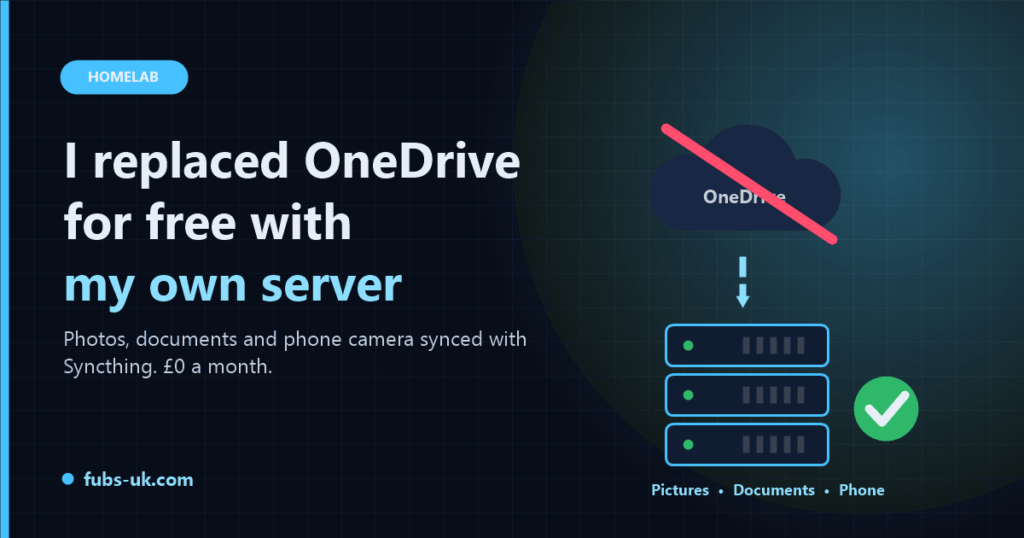
I recently cut back on a lot of the subscriptions I’d been quietly paying for without thinking. Microsoft 365 was one of them. That’s fine, until you realise that OneDrive drops back to a free 5 GB, and I had over 15 GB in it. Over the limit, Microsoft makes your account read-only, and leave it long enough and they can delete your files.
I already had a home server, so the question was simple: could I get everything OneDrive did for me (photos, documents, files on every PC, and my phone’s camera backed up) without paying anyone?
Yes. Here’s how, including the mistakes I made along the way.
What I was actually using OneDrive for
Before replacing something, find out what it’s really doing. Mine turned out to be:
- Phone photos: about 9.5 GB from my phone’s gallery, uploaded automatically.
- Stream themes: 6 GB of OBS overlays and graphics in Documents.
- One important letter, the kind of thing you really don’t want to lose.
- A pile of empty folders.
That’s not much, and none of it needed Microsoft.
The surprise: the files weren’t really on my PC
My first attempt at copying the photos out of OneDrive failed on every single file. They showed in File Explorer with the right sizes and names, but Windows said “The cloud file provider is not running.”
They were online-only placeholders. OneDrive shows you the file but keeps the actual data in the cloud until you open it. With OneDrive not running, there was nothing to copy.
The fix: in the OneDrive folder, right-click the folder you want and choose “Always keep on this device”. Then wait until every file shows a solid green tick before you copy anything. If you’re leaving OneDrive, do this first, while you still can.
Why Syncthing?
Syncthing is free, open source, and syncs folders directly between your own devices. There’s no cloud account, no company holding your files, and no storage limit apart from your own disks.
The catch with a pure device-to-device setup is that two devices need to be switched on at the same time to sync. My PCs are rarely all on together. So I added one more device that’s always on: my home server.
The setup ends up looking like this:
- The server runs Syncthing as an app and acts as the hub. It always has the latest copy.
- Each PC syncs with the server whenever it’s on.
- My phone sends its camera photos to the server over home Wi-Fi.
Change a file on one PC, and it reaches the server within seconds, then the other PCs as soon as they’re switched on.
The folders I sync
| Folder | Where it syncs | Notes |
|---|---|---|
| Pictures | every PC + server | including the photos rescued from OneDrive |
| Documents | every PC + server | stream themes, letters, settings |
| Phone Camera | phone → server → every PC | new photos arrive automatically |
The phone camera: better than OneDrive’s version
On Android, I use Syncthing-Fork (free on the Play Store). The phone’s camera folder is set to Send Only: it sends new photos to the server and never receives anything back.
The clever bit is on the server. It’s set to Receive Only, with “Ignore Delete” switched on. That means:
- Every photo I take ends up on the server, and from there on all my PCs.
- When my phone fills up, I can delete photos from the phone without losing them. The server ignores the deletion and keeps its copy.
That’s something OneDrive’s camera upload never made obvious. I only upload on home Wi-Fi, so it doesn’t touch my mobile data.
Sync is not a backup
This is the most important point in the whole post. Sync copies your mistakes too. Delete a file on one PC, and Syncthing deletes it everywhere. A file gets corrupted, and the corrupted version syncs everywhere.
So there are two extra layers:
- Version history. Syncthing can keep old copies of files that are changed or deleted. My PCs keep the last 5 versions of each file. The server keeps versions for a year.
- Real backups. The folders on the server are snapshotted every night and copied to a second drive, kept for four weeks, and the backup copy is read-only. If everything else goes wrong, I can still go back to any night in the last month.
If you’re doing this yourself, add an offsite copy too, in case of fire or theft. A cloud storage service such as Backblaze B2 costs very little for this much data.
The mistakes I made (so you don’t have to)
1. Doing PC settings on the server’s page. Syncthing has a web page on every device, and they look identical. I followed the “add a folder on your PC” steps on the server’s page by mistake, and gave the server a Windows path it didn’t understand. It saved 6.6 GB of documents into a temporary area that would have been wiped on its next restart. It was recovered, but the lesson is simple: on a PC, Syncthing’s own page is always 127.0.0.1:8384. Check the address bar before you change anything.
2. The folder path only counts the first time. When you accept a shared folder, you can set where it lives on that device, but only before you first press Save. After that it’s locked. One PC saved a folder as just a bare folder name instead of a full path, and I had to remove it and accept it again.
3. Don’t put one synced folder inside another. I nearly put “Phone Camera” inside the synced Pictures folder. That would have made both folders try to sync the same photos. Keep them side by side instead.
4. Exclude Windows’ junk from Documents. Windows puts a few odd things in Documents, like old “My Music” shortcuts, desktop.ini, Thumbs.db and Office temp files. In Syncthing’s Ignore Patterns, I added:
/My Music
/My Pictures
/My Videos
(?d)desktop.ini
(?d)Thumbs.db
~$*
*.tmp
Checking it actually worked
Before deleting anything from OneDrive, I wanted proof. So I compared a checksum (a digital fingerprint) of every phone photo on the server with the copy on my PC. All 78 matched exactly. Only then did I delete them from OneDrive.
After that, I moved the important letter into Documents, deleted the old stream themes (I already had a newer copy), and unlinked OneDrive on every PC.
The result
- £0 a month. Syncthing is free, and it runs on hardware I already had.
- My photos, documents and phone camera are on the server and every PC.
- A year of version history on the server, nightly backups to a second drive, and no storage limit.
- Nothing left in Microsoft’s cloud.
If you have a home server, or even just an old PC that’s always on, you can do exactly this. If you don’t, Syncthing still works directly between your devices; you’d just need two of them switched on at the same time to sync.
So many subscriptions these day’s, what else could I cancel and do myself.